
Recursos
Janela de pré-visualização para Mac
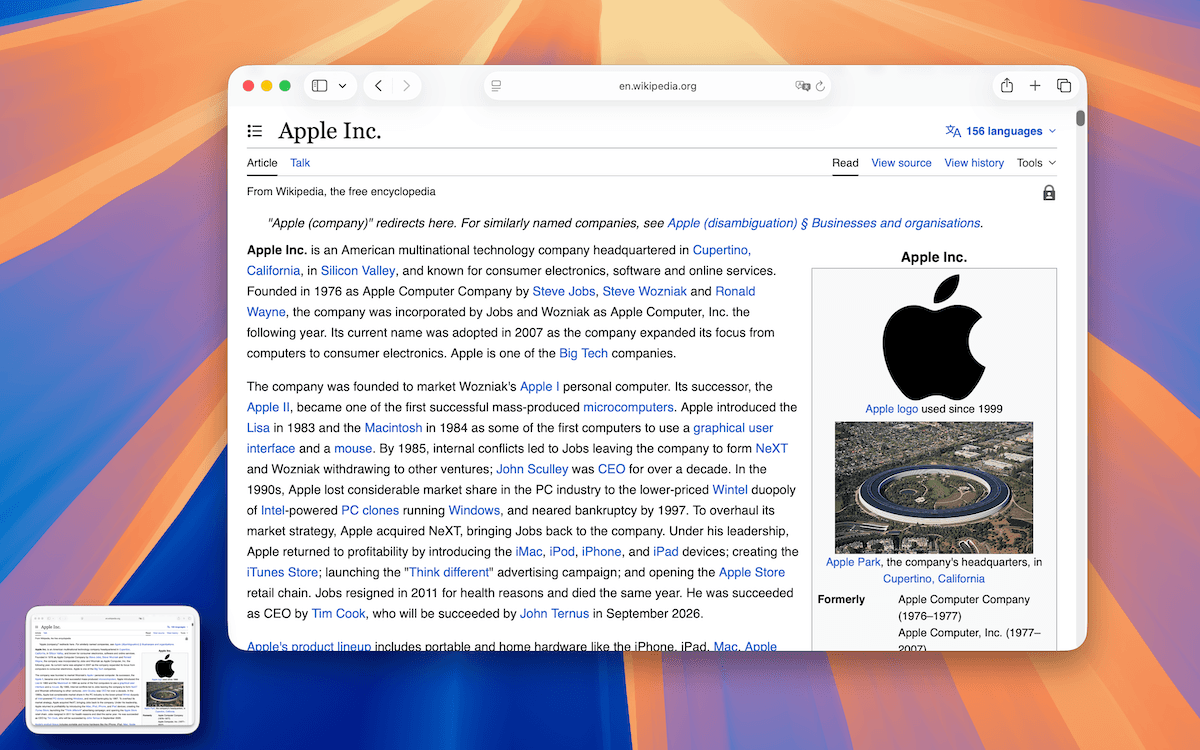
Quando ativado, o TrarrenShot mostra uma miniatura flutuante após copiar, salvar ou compartilhar uma captura. Você pode confirmar a saída e usar as ações seguintes disponíveis sem reabrir o arquivo.
Última atualização: junho de 2026
Ideal para
- Confirmar que uma captura foi copiada, salva ou compartilhada antes de continuar.
- Fixar a visualização para manter uma saída visível.
- Abrir uma imagem salva ou mostrar sua pasta pela visualização.
Mostre uma miniatura flutuante depois de copiar, salvar ou compartilhar para confirmar o resultado e continuar rapidamente.
Como funciona
- Copie, salve ou compartilhe um resultado.
- Confira a pré-visualização flutuante.
- Use ações rápidas para fixar, copiar, salvar ou abrir o arquivo.
- Arraste a pré-visualização para outro app quando necessário.
- Deixe-a fechar automaticamente ou feche-a manualmente.
Perguntas frequentes
A pré-visualização pode ficar à esquerda ou à direita e fechar automaticamente depois do tempo escolhido.
Antes de começar
- Preview pode ser desativado em Settings; quando está desativado, não aparece miniatura.
- A personalização de Quick Access é um recurso Plus.
Perguntas frequentes
- Posso colocar a Preview em qualquer lado da tela?
- Sim. A Preview suporta o posicionamento à esquerda e à direita.
- A Preview pode fechar automaticamente?
- Sim. Você pode escolher desativado, 3 segundos, 5 segundos ou 10 segundos.
- Posso fixar ou reabrir uma saída salva pela Preview?
- Sim. Você pode fixar a Preview e, em saídas salvas, abrir a imagem ou mostrar a pasta.
- As opções Quick Access estão disponíveis para todos?
- A personalização de Quick Access requer Plus.
Tudo que você precisa. Nada do que não precisa.
Saiba maisCaptura One Shot para Mac
Capture uma janela, uma região ou a tela inteira com uma ação e depois copie, salve ou edite o resultado.
Saiba maisAnotação de capturas no Mac
Marque capturas no editor do TrarrenShot com retângulo, círculo, linha, seta, texto, caneta, marca-texto, pixelate, lupa e passos.
Saiba maisCaptura com rolagem para Mac
Depois do One Shot, selecione uma área no editor, inicie o Captura com rolagem e o TrarrenShot une o resultado durante a rolagem.
Saiba maisTrarrenShot é um app leve de captura para Mac com anotação de tela, captura com rolagem, OCR e Live Canvas para reuniões e trabalho remoto.