
Features
Preview Window on Mac
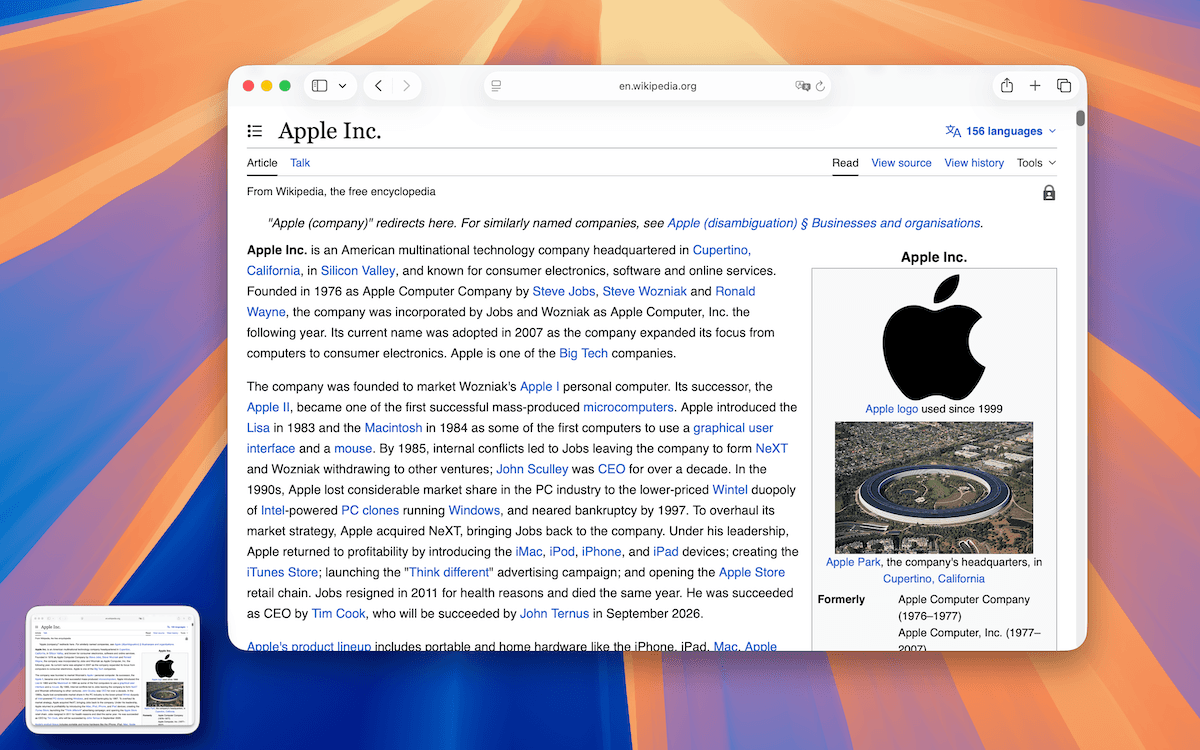
When enabled, TrarrenShot shows a floating thumbnail after you copy, save, or share a screenshot. It lets you confirm the output and use the available follow-up actions without reopening the file.
Last updated: June 2026
Best for
- Confirm that a screenshot was copied, saved, or shared before moving on.
- Keep an output visible by pinning its preview.
- Open a saved image or reveal its folder from the preview.
Preview Window
TrarrenShot Preview Window shows a floating output thumbnail after copy, save, or share flows. It helps you confirm the result and continue with common follow-up actions without reopening the file.
How It Works
Complete an output action
Copy, save, or share a screenshot result to show the preview thumbnail.
Review the thumbnail
Check the floating preview to confirm the output before moving on.
Use quick actions
Pin, copy, save, open the picture, or open its folder from the preview controls.
Drag if needed
Drag the preview into another app when you want to reuse the output.
Let it dismiss
Leave it open, close it manually, or let it dismiss automatically based on your settings.
Preview can temporarily hide while capture is preparing, then reappear after the capture is ready.
Before you start
- Preview can be turned off in Settings, so no thumbnail appears when it is disabled.
- Quick-access customization is a Plus feature.
Frequently Asked Questions
- Can I place the preview on either side of the screen?
- Yes. The preview supports left and right placement.
- Can the preview close automatically?
- Yes. You can choose off, 3 seconds, 5 seconds, or 10 seconds.
- Can I pin or reopen saved output from the preview?
- Yes. You can pin the preview, and saved outputs can open the picture or reveal the folder.
- Are the quick-access options available to everyone?
- The quick-access customization is Plus-gated.
Everything you need. Nothing you don't.
Learn moreOne Shot Capture on Mac
Start one capture and choose a window, a dragged region, or the full screen — then copy, save, or edit the result.
Learn moreScreenshot Annotation on Mac
Annotate Mac screenshots in TrarrenShot's Inline Editor. Advanced Editor is coming soon for existing images, added screenshots, and multi-image compositions.
Learn moreScroll Capture for Mac
Create long screenshots after One Shot by selecting an area, starting Scroll Capture in the editor, and scrolling while TrarrenShot stitches the result.
Learn moreA fast, lightweight Mac screenshot app with screen annotation, scrolling capture, OCR, and Live Canvas for meetings, demos, and remote work.