
Features
Screenshot Annotation on Mac
Annotate a One Shot screenshot in the Inline Editor today. Advanced Editor is coming soon for opening existing images, adding new screenshots to a workspace, and composing multiple images before export.
Last updated: September 2026
Best for
- Point out a specific UI detail in a bug report or design review.
- Add arrows, labels, or step markers to a tutorial screenshot.
- Pixelate sensitive details before you share a screenshot.
Inline Editor annotation
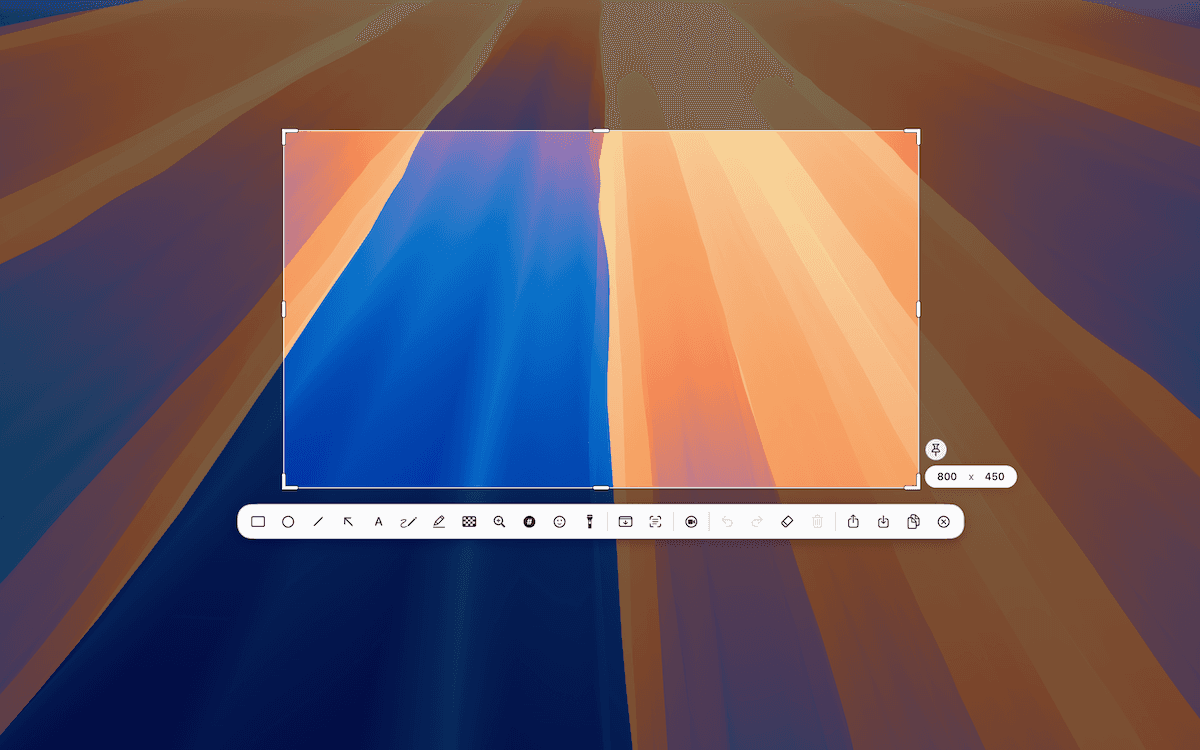
TrarrenShot's Inline Editor is the lightweight post-capture editing step. Add rectangle, circle, line, arrow, text, pen, highlighter, pixelate, magnify, and step annotations immediately after One Shot. Adjust the available color, line-width, and other visual settings for the selected annotation, then refine the final capture area without starting the screenshot over.
For a practical, answer-first walkthrough, learn how to annotate a screenshot on Mac.
When to use Note Annotation
Use standard annotation when the marks themselves explain the screenshot. Use Note Annotation when each callout also needs numbered supporting text in a panel beside the exported image.
How It Works
Start One Shot
Start One Shot from the menu bar, or use the default shortcut if you have not changed it.
Select the area
Drag to select a region, or press F for a fullscreen capture.
Add annotations
Choose rectangle, circle, line, arrow, text, pen, highlighter, pixelate, magnify, or step from the editor toolbar.
Export
Use Copy, Save, or Share when the result is ready.
Available tools: rectangle, circle, line, arrow, text, pen, highlighter, pixelate, magnify, and step.
Advanced Editor — Coming Soon
Already have a screenshot or image? Advanced Editor — Coming Soon is planned as a workspace for opening existing images, adding new captures, and composing several visuals before export. It is not available in the current release.
Advanced Editor preview coming soon
3:2 · 1200 × 800
Bring screenshots and images into one workspace
The planned editor will open PNG, JPEG, WebP, and HEIC images from a file, clipboard, or drag and drop. You will also be able to capture a window, region, or full display from inside the editor and add it to the current workspace.
Annotate and arrange the composition
Add arrows, shapes, text, highlights, and other annotations. Select, move, or resize images, adjust annotation styling, and crop the finished composition. Undo and redo as you refine it.
Multi-image composition preview coming soon
3:2 · 1200 × 800
Save the finished image
The planned Save, Copy, and Share actions will output the composed image, not a separate layered editing project.
What you can use today
For a new screenshot, One Shot opens the available Inline Editor for immediate annotation and final-area refinement. To draw over the live desktop during a demo or screen share, use Live Canvas.
Privacy
Recognition, stitching, annotation, and export preparation run locally on your Mac.
Before you start
- The Inline Editor's annotation tools appear after you open a One Shot capture.
- Advanced Editor is not available in the current release; its described workflows are coming soon.
- For a numbered explanation panel beside the image, use Note Annotation.
Frequently Asked Questions
- Which annotation tools are available?
- The available Inline Editor includes rectangle, circle, line, arrow, text, pen, highlighter, pixelate, magnify, and step tools.
- How do I hide sensitive information?
- Use the pixelate tool to obscure sensitive parts of a screenshot.
- Where do annotation tools appear?
- They appear in the editor toolbar after a One Shot capture.
- How is Note Annotation different from standard annotation?
- Standard annotation adds visual markup directly to the screenshot. Note Annotation adds numbered callouts and a supporting notes panel beside the exported image.
Everything you need. Nothing you don't.
Learn moreMac Screenshot Editor: Advanced Editor
Coming SoonComing soon: open and edit screenshots or images already saved on your Mac in TrarrenShot Advanced Editor, add captures, compose images, and export the result.
Learn moreOne Shot Capture on Mac
Start one capture and choose a window, a dragged region, or the full screen — then copy, save, or edit the result.
Learn moreScreen Annotation for Mac | TrarrenShot Live Canvas
Draw directly on your Mac screen with Live Canvas. Annotate during meetings and demos, click through to your apps, then save, copy, or share.
Learn moreNote Annotation for Clearer Screenshots
Add numbered callouts and supporting text to explain exactly what matters in a screenshot.
Learn moreA fast, lightweight Mac screenshot app with screen annotation, scrolling capture, OCR, and Live Canvas for meetings, demos, and remote work.