
Features
Coming Soon
This feature is planned and isn't available in the current release.
Mac Screenshot Editor: Advanced Editor
Advanced Editor is planned to open screenshots and other images already saved on your Mac, including images not captured with TrarrenShot, so you can edit them directly without recapturing them. Until it arrives, use macOS Markup or Preview; the available Inline Editor annotates new One Shot captures.
Last updated: October 2026
Planned workflows
- Annotate an existing screenshot or downloaded image.
- Add a new window, region, or full-screen capture to the same workspace.
- Arrange several images into one visual explanation.
Open and edit an existing screenshot on Mac
Advanced Editor is coming soon and is planned to open screenshots and other images already saved on your Mac so you can edit them directly. It will not be limited to images captured with TrarrenShot, and you will not need to recapture the screen. Until then, use macOS Markup or Preview for saved images; TrarrenShot's available Inline Editor is for annotating a new One Shot capture.
Coming Soon: Advanced Editor is not available in the current release. The workflows below describe planned functionality, not features you can use today.
For steps using the options available today, see the guide to drawing on a screenshot on Mac.
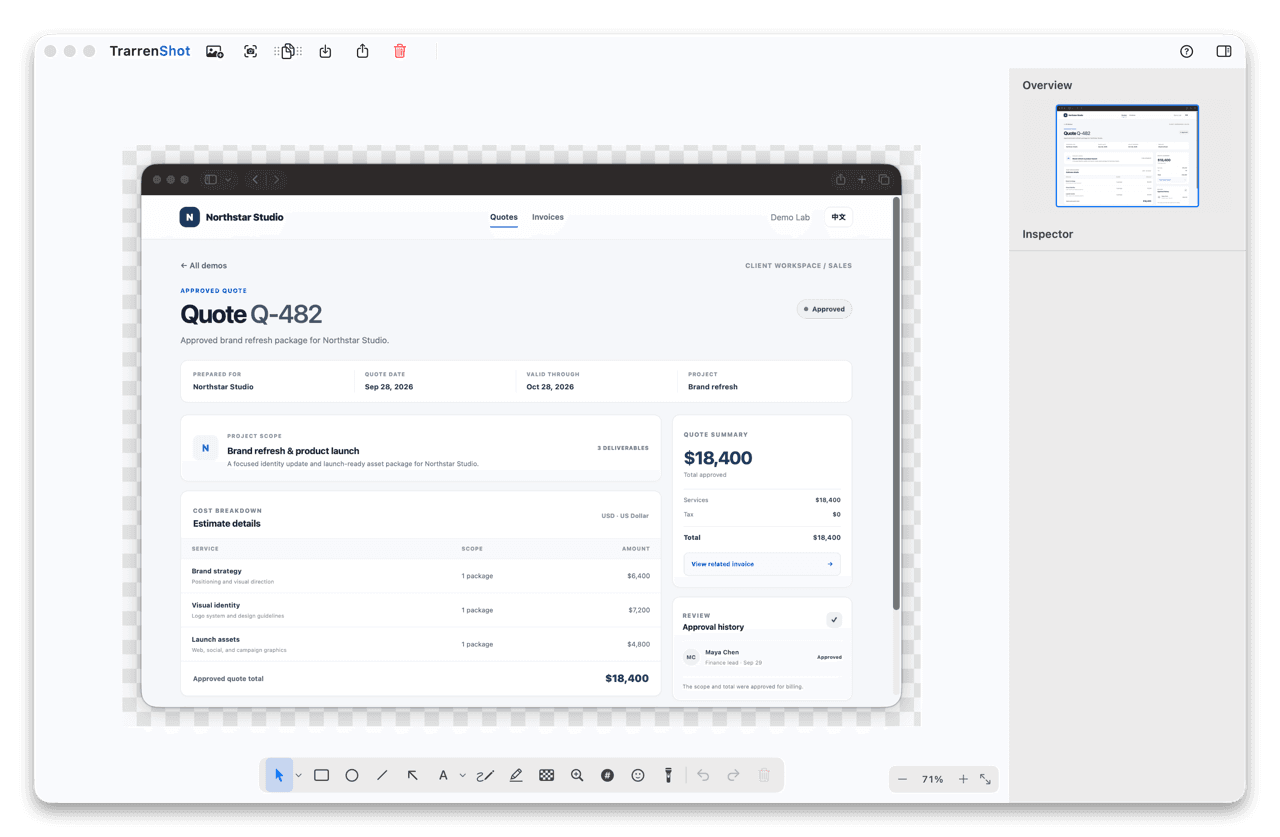
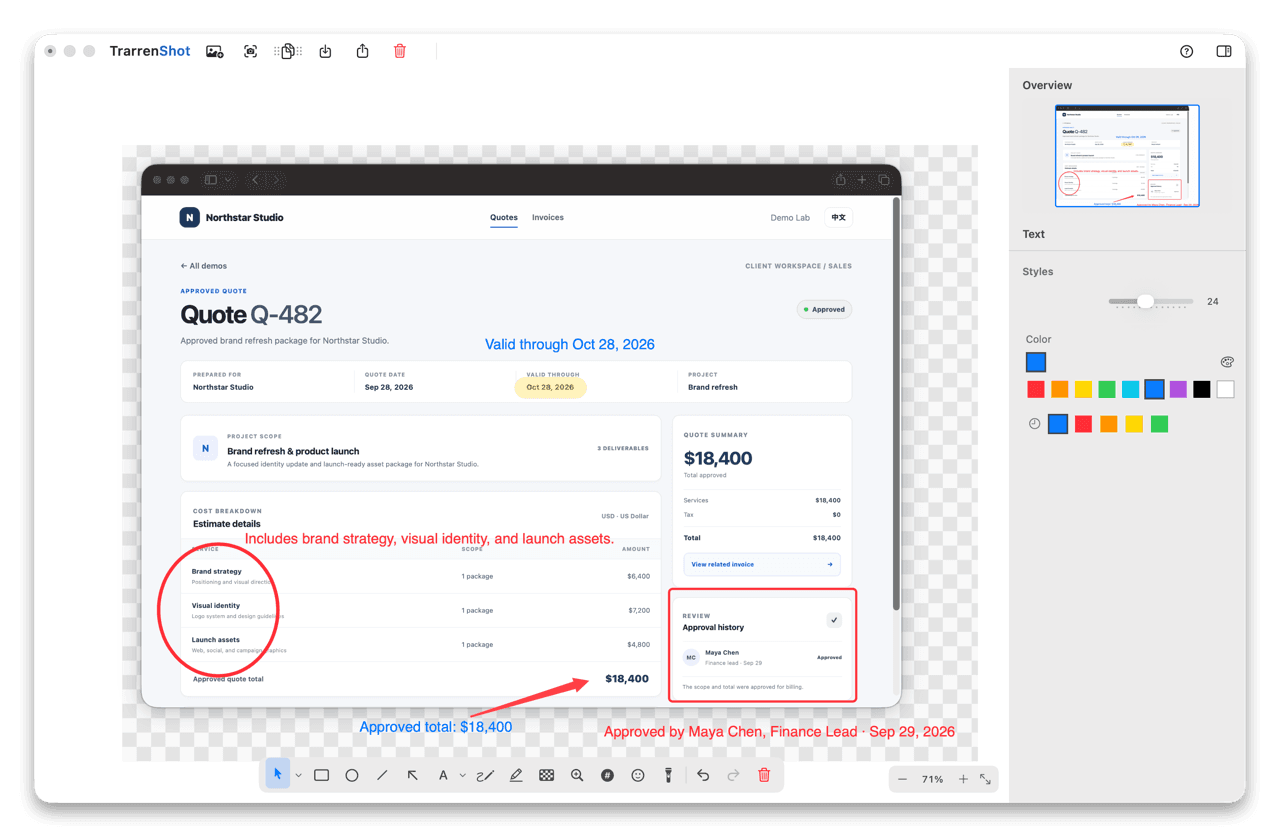
Open existing images and add captures
When available, Advanced Editor is planned to open PNG, JPEG, WebP, and HEIC images from a file, clipboard, or drag and drop. You will also be able to capture a window, region, or full display from inside the editor and add that capture to the current workspace.
Annotate, arrange, and crop
The planned workspace brings images and annotations together. Add arrows, shapes, text, highlights, and other markups; select, move, or resize images; adjust annotation styling; and crop the finished composition. Undo and redo are planned for refining your work.
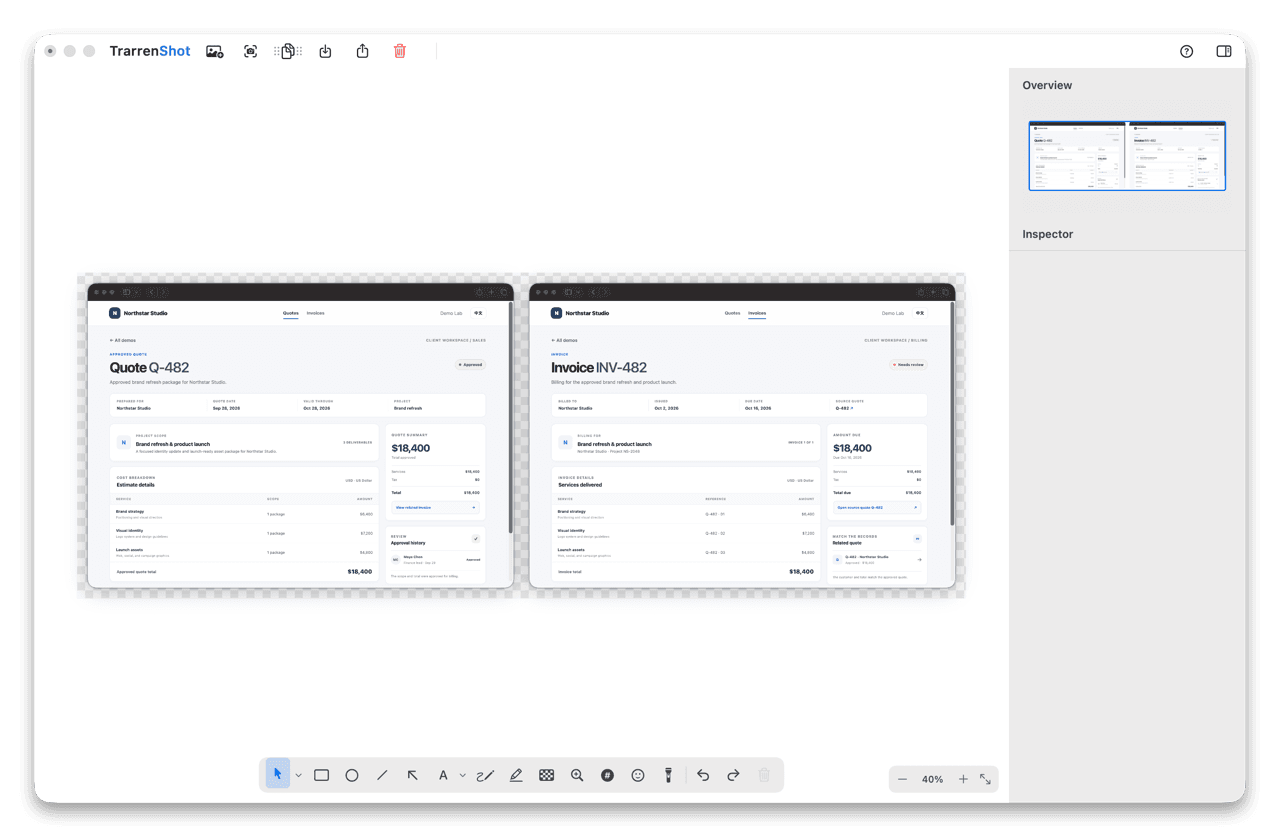
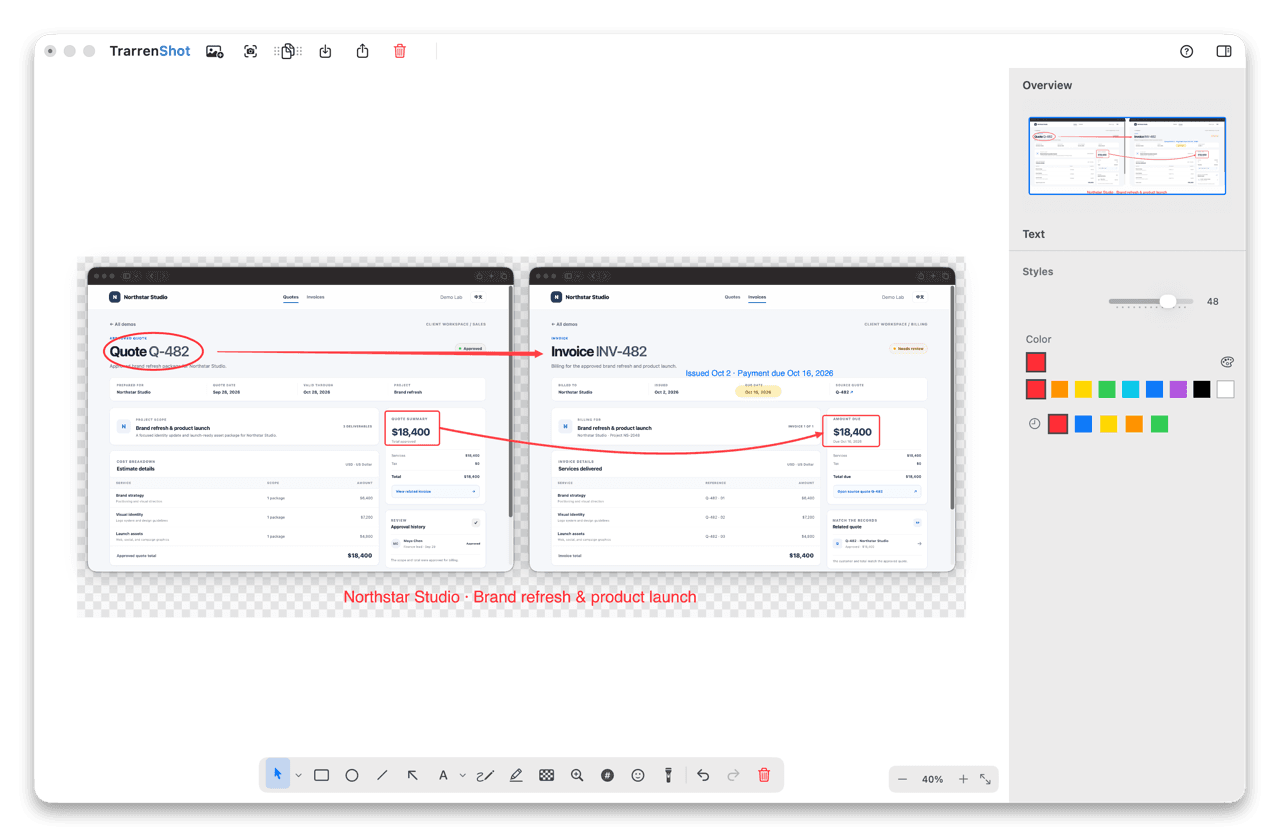
Save the composed image
Advanced Editor is planned to let you save, copy, or share the finished composition as an image, not as a separate layered editing project.
Advanced Editor or Live Canvas?
Advanced Editor is the planned choice for a saved screenshot or image. For drawing over the live desktop during a presentation, meeting, or demo, use Live Canvas, which is available today. For immediate markup after a new capture, see Screenshot Annotation and the current Inline Editor workflow.
Before you start
- The planned output is a composed image, not a separate layered editing project.
Frequently Asked Questions
- How do I draw on a screenshot on Mac?
- For an image you already have, use macOS Markup or Preview today. Advanced Editor is coming soon for opening and annotating existing images; the available Inline Editor annotates new screenshots captured with One Shot.
- Is Advanced Editor available now?
- No. Advanced Editor is coming soon and is not available in the current release.
- What image types is Advanced Editor planned to open?
- When available, it is planned to open PNG, JPEG, WebP, and HEIC images from a file, clipboard, or drag and drop.
- Can I add another screenshot to the same workspace?
- That workflow is planned for Advanced Editor. It is intended to let you capture a window, region, or full display and add the result to the current workspace.
- How is Advanced Editor different from Live Canvas?
- Advanced Editor is planned for saved images and screenshots. Live Canvas is available now for drawing over the live Mac desktop.
- Will Advanced Editor save editable layers?
- The planned Save, Copy, and Share actions output the composed image, not a separate layered editing project.
Everything you need. Nothing you don't.
Learn moreScreenshot Annotation on Mac
Annotate Mac screenshots in TrarrenShot's Inline Editor. Advanced Editor is coming soon for existing images, added screenshots, and multi-image compositions.
Learn moreOne Shot Capture on Mac
Start one capture and choose a window, a dragged region, or the full screen — then copy, save, or edit the result.
Learn moreScreen Annotation for Mac | TrarrenShot Live Canvas
Draw directly on your Mac screen with Live Canvas. Annotate during meetings and demos, click through to your apps, then save, copy, or share.
Learn morePreview Window on Mac
Show a floating output thumbnail after copy, save, or share so you can confirm the result and take follow-up actions.
Learn moreA fast, lightweight Mac screenshot app with screen annotation, scrolling capture, OCR, and Live Canvas for meetings, demos, and remote work.